You could try connecting a monitor to your Spark’s HDMI port, and checking the output during startup.
For clarification, when you say HDMI port, do you mean the USB?
No. On the side of Pi, next to the power connector, is a HDMI port that can be used to connect a monitor. 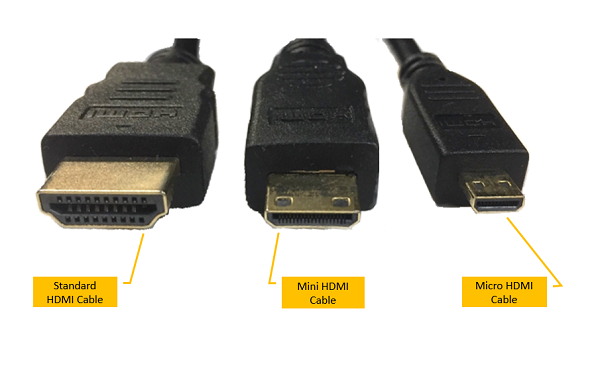
Connect that to a TV or PC monitor, and restart your Pi. The messages shown while starting up will give you more information about what’s going on.
You can also connect a keyboard to your Pi to directly access the terminal without using SSH.
Hmm, I’ll give it a shot.
How would I go about connecting a keyboard to it while the USB port is in use by the monitor?
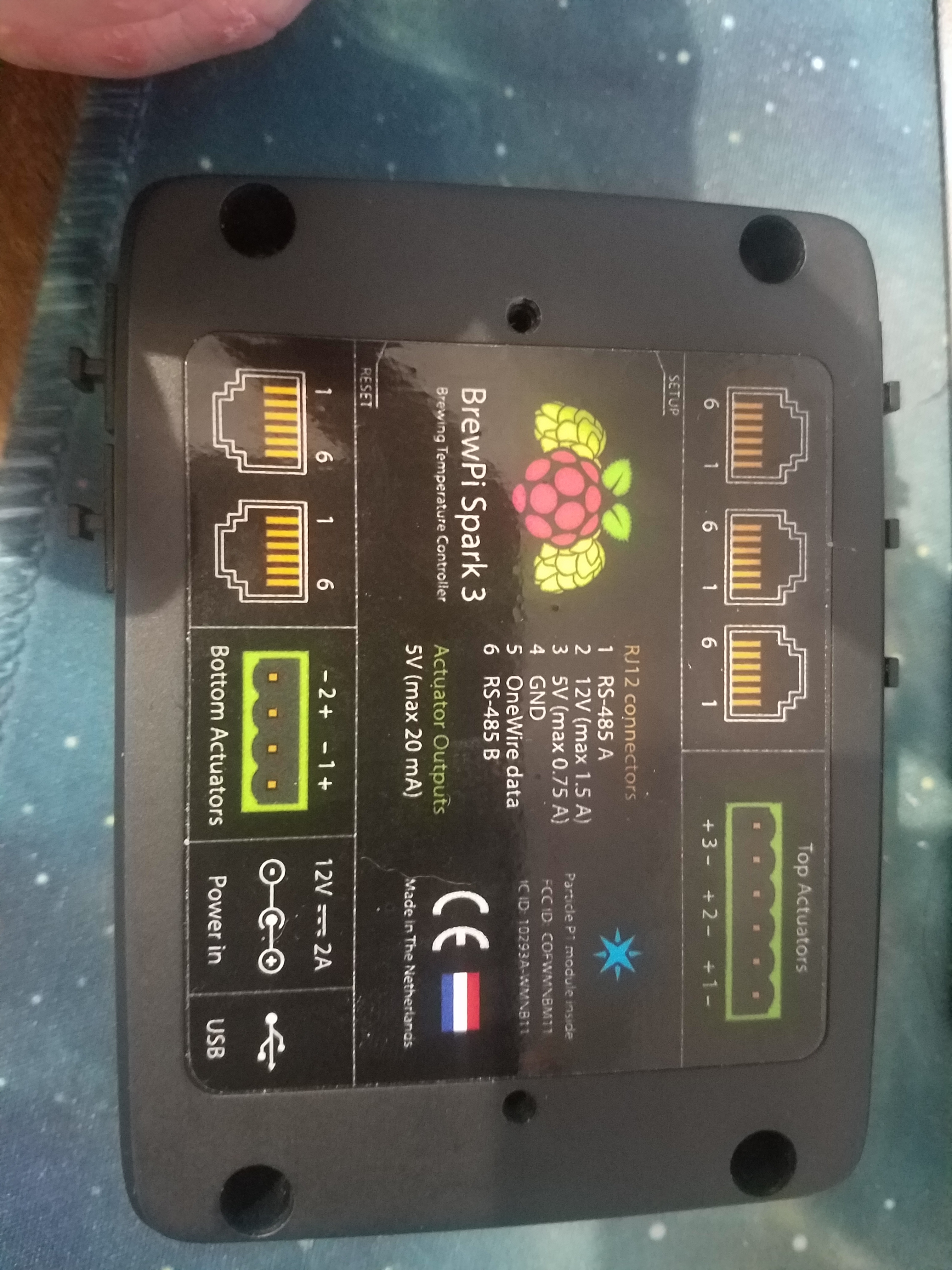
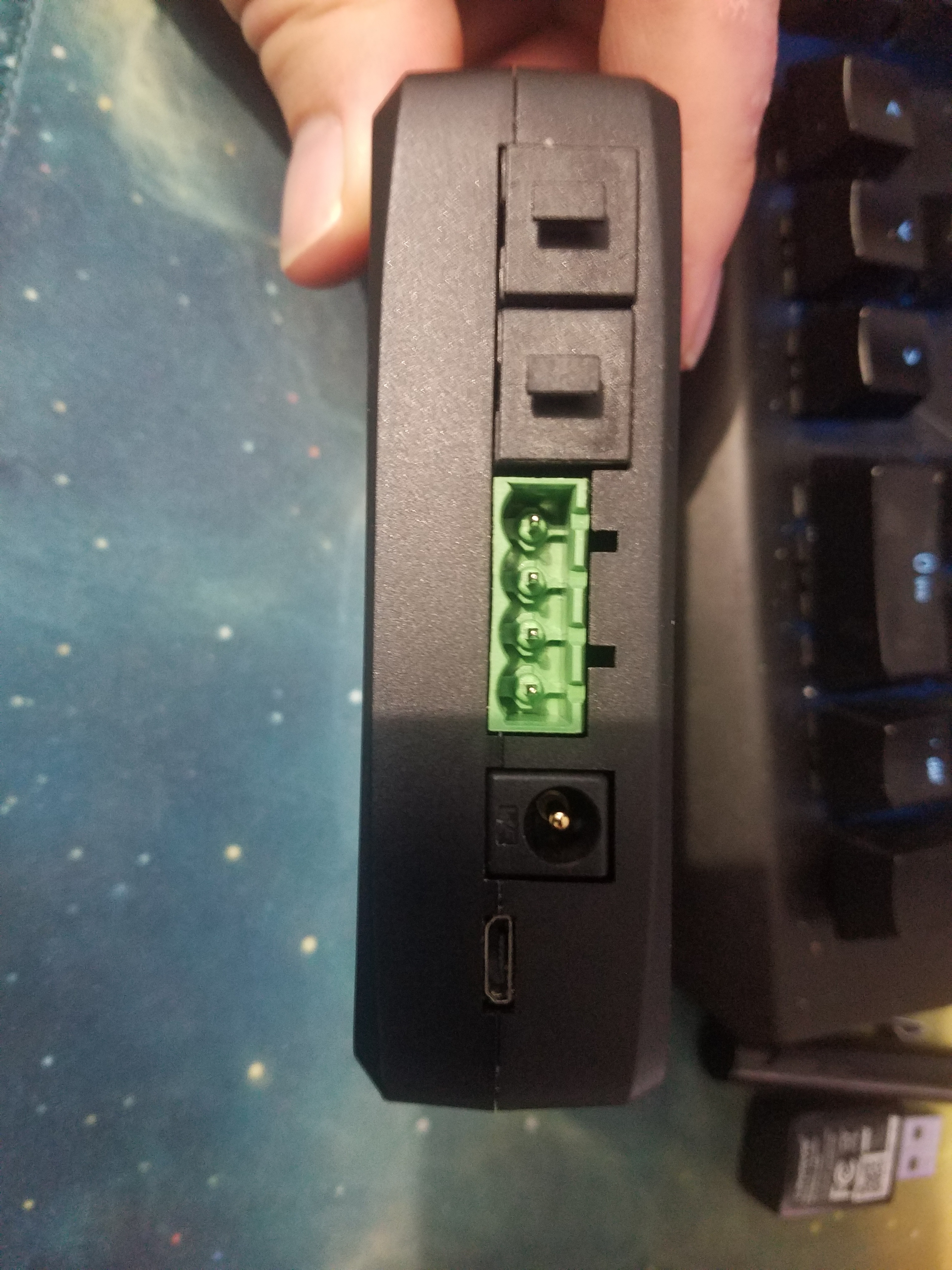
For further clarification, I should get an HDMI to micro HDMI cord and not an HDMI to micro USB cord?
You’re holding the Spark there, not the Pi.
It has an SD slot, but that’s not the one you want.
facepalm
So the Spark 3 was not meant to be essentially a combination Pi/ arduino controller?
Thanks for the help. Off to get a proper Pi now and start over.
:’ )
We chose to split the system in low-level control on the Spark for stability: specific hardware designed to read sensors and toggle actuators, which only runs our embedded firmware, without an operating system.
One or more of these temperature controllers are combined with a single, much more powerful server (a pi or any other computer that can run docker) for a rich web interface that can communicate with and log data for all the hardware.
This will give the best stability and keep the system flexible with room to expand.
The SD card slot on the Spark is currently not used, but the hardware is there for future use. An example is to store data temporarily when the connection with the server is lost.
A Raspberry Pi 4 is recommended, preferably a model with more RAM.
Bob contributed a bit to the confusion because he said the ‘Spark’s HDMI port’, but he was confused as well 
After you get the Pi, just follow our guide at https://brewblox.netlify.app
Raspberry PI 4 - 8GB startup issue.
Has any one of you had an issue with starting up the PI after a cold boot, means that the PI cannot be accessed through SSH/PuTTY and BrewBlox is not running either. I have to restart my PI 4 after a cold boot in order to have the system up and running 
Cheers Ken
There are multiple possible explanations. To find out, you could attach a monitor to the Pi, and check the startup logs for errors after boot.
1 Like
Thanks! Bob I will attach the monitor again, and see what the PI says during boot up.
Hi,
Is this still relevant a year later? I’m running into time out error issues during Brewblox install. My SD card isn’t 2years old. I’m getting a: No such command “disable-ipv6” message…
How’s swap memory is disable on Pi?
thx
Swap overflow typically results in complete freezeups, not timeouts, so that’s unlikely to be the issue.
brewblox-ctl disable-ipv6 was replaced with brewblox-ctl fix ipv6, which enables IPv6 for the docker daemon.
You can still disable IPv6 if desired on the host level, by running
echo "net.ipv6.conf.all.disable_ipv6 = 1" | sudo tee -a /etc/sysctl.conf
echo "net.ipv6.conf.default.disable_ipv6 = 1" | sudo tee -a /etc/sysctl.conf
echo "net.ipv6.conf.lo.disable_ipv6 = 1" | sudo tee -a /etc/sysctl.conf
sudo sysctl -p
Thanks Bob,
I could successfully run the “fix ipv6” command. Unfortunately, it didn’t solve the timeouts error. I did also tried different SD card without success… Would you have any other solution in mind that I could try?!
Thanks
It depends on what’s causing the timeouts. DNS servers are another common suspect, and you can set your Pi to use (or not use) the google 8.8.8.8 / 8.8.4.4 servers.
It seems it finally worked out. After trying few time I finally didn’t run into the timeout… My problem now is that I can’t access the service page in my browser. Neither http://raspberrypi or its IP address get me there. How do I know it got install properly?
Did you run brewblox-ctl up to start services? You can run docker ps to quickly check if containers are running.
If you’re unsure about installation status, you can remove the brewblox directory and re-run brewblox-ctl install. Because docker is installed already, and docker images are stored elsewhere, re-installation of brewblox itself will be much faster.
My timeout issues were actually during the run of brewblox-ctl. It looked like it went through. As seen below:
pi@raspberrypi:~/brewblox $ brewblox-ctl --verbose up
Raspberry Pi models 0 and 1 are not supported. Do you want to continue? [Press ENTER for default value ‘no’]
yes
SHELL docker version 2>&1
SHELL docker-compose up -d
brewblox_myspark_1 is up-to-date
brewblox_ui_1 is up-to-date
brewblox_redis_1 is up-to-date
brewblox_victoria_1 is up-to-date
brewblox_spark-one_1 is up-to-date
brewblox_history_1 is up-to-date
brewblox_traefik_1 is up-to-date
brewblox_eventbus_1 is up-to-date
pi@raspberrypi:~/brewblox $
Here is what i’m getting from docker ps…

Here’s the problem, for both issues.
The Pi models zero and 1 are much slower (timeouts), and use the ARMv6 CPU architecture instead of ARMv7. Docker images built for ARMv7 aren’t backwards compatible with ARMv6. Your containers are crashing and rebooting immediately.
oh wow… I’m quite dumb… For some reason I was thought this Rpi was a Model 3. And that that message was coming because it was detected… Oh well not my brightess day!! Thank Bob!
We’ll probably make that error more insistent, with an explicit .env flag required to bypass it. There are some use cases where you can technically use brewblox on a Pi zero/1, but for that you really have to know what you’re doing.